Sunday, 24 November 2013

How To Disable Pop-Up Blocker In Google Chrome

Do you want to know that how to Disable Pop-Up Blocker in Google Chrome? If yes then you are at the right place, because through this article you will be able to know how to Disable or enable Pop-Up Blocker in Google Chrome, It is quite simple and easy, but the only thing you have to do is to pay attention while reading my article.

You have Follow Five Simple Steps to Disable Pop-Up Blocker in Google Chrome,

Step 1:- First of all you have open/start your browser (Google Chrome), and click on "CUSTOMISE AND CONTROL GOOGLE CHROME" Button/Icon, which is on the top right side of your Google chrome browser.
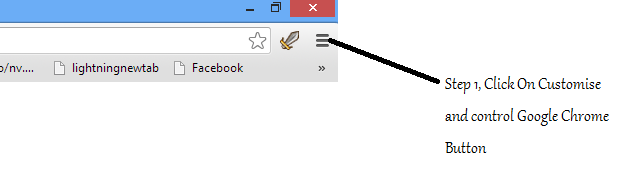
Step 1, Click On Customise and Control Google Chrome Button


Step 2:- In this step, You just have to click on Settings Button.
Step 2, Click On Settings Button


Step 3:- In Step 3 you will see a new page in your Google Chrome Screen, The only thing you have to do in this Step is just to Scroll down Page, and Click On "Advanced Settings" Button.
Step 3, Scroll Down Page, and click On Show Advanced Settings button
Step 3, Scroll down page, and click on Show Advanced Settings Button

Step 4:- After Step 3, Advanced Settings related to your Google Chrome Broswer will be vissible on your screen, and you have to click on "Content Settings" Button, You can find Content Settings Button in the Category Of Privacy.
Step 4, Click On Content Settings Buttons
Step 4, Click On Content Settings Button

Step 5:- This is the final Step of How To Disable Pop-Up Blocker In Google Chrome , and in this step you have to scroll down the page and and Sellect the option of "Allow all Sites", and click on Done Button.
Step 5, Click on Show Pop-ups Option, and Click On Done Button To Save Settings
Step 5, Click On Show Pop-ups option, and click on Done Button To Save Settings.

Congratulation, you have learned how to Disable Pop-Up Blocker In Google Chrome, and through this way you can enable/disable the pop-up blocker in Google Chrome.

Saturday, 16 November 2013

Online Vehicle Verification For Sindh

Good news for four wheelers and two wheelers, if you are from sindh and wants to verify/confirm your vehicle ownership, Engine No, Horse Power, Remarks,  now you can verify/confirm all of these things at your home free without going at any government office. Yeah it is true now you can check/Verify your vehicle registration without going anywhere, and for that the only thing you have to do is just to visit the portal/website of Excise and Taxation Department Sindh and enter your vehicle registration number.

Excise and Taxation Department, Sindh Government, Introduced online portal through which anybody can verify their four/two wheel vehicles registration. From this portal they can check following things about their motor vehicle.

1. Registration No.
2. Make 
3. Registration Date
4. Body Type
5. Tax Payment
6. Model Year
7. Engine No
8. Safe Custody
9. vehicle Owner Name
10. CPLC
11. Seating Capacity
12. Horse Power
13. Remarks

Here the main Question is How to check Vehicle Registration, and all of above important things about vehicle online? The answer is quite simple and easy, you have to follow these simple and easy steps, and after these steps you will able to check/varify you Vehicle Registation Online Free.

Step 1.
Go to the Portal/Website of Excise and Taxation Department Sindh, URL of this portal/website is http://www.excise.gos.pk/.
URL OF Excise and Taxation Department, Sindh
URL OF Excise and Taxation Department, Sindh 

Step2.
In Step 2, Click on Online vehicle verification link, you can find this link on the left side of the portal/website.
Click On Online Vehicle Varification Link
Click On Online Vehicle Varification

Step3.
In Step 3, you have to select your vehicle (e.g. Four wheelers, Two wheelers), if you have motor bike select Two Wheelers, and if you have Car then Select Four Wheelers. After selecting your vehicle, you have to enter your car registration number (E.g. AAA-123).  After this enter the security code and click on send button.

Form Of Online Vehicle Varification Sindh, 1.Select Vehicle, 2.Enter Registration, 3.Enter Security Code, 3.Click On Send Button
Form On Online Vehicle Verification Sindh

After Completing these steps successfully, a new window will be open and from that window all the important information regarding to the vehicle will be visible on your browser.